
Updated:
The problem with notes in video calls
In a video call, the person taking notes is half-present. They type while others talk, miss the part where a date was agreed, and end up sending a recap that is either too long or too vague. The built-in recordings of meeting platforms help, but a two-hour video file is not something anyone rewatches.
Many AI note takers solve this by sending a bot into the meeting. That works, but some teams and clients don't like an extra participant, and some companies block unknown bots altogether.
How Notal handles it
Recording from your side
In Chrome, Notal captures the meeting tab's audio together with your microphone. The Windows app records the computer's audio and the microphone, so it also works with the Zoom or Teams desktop apps.
Transcript with names
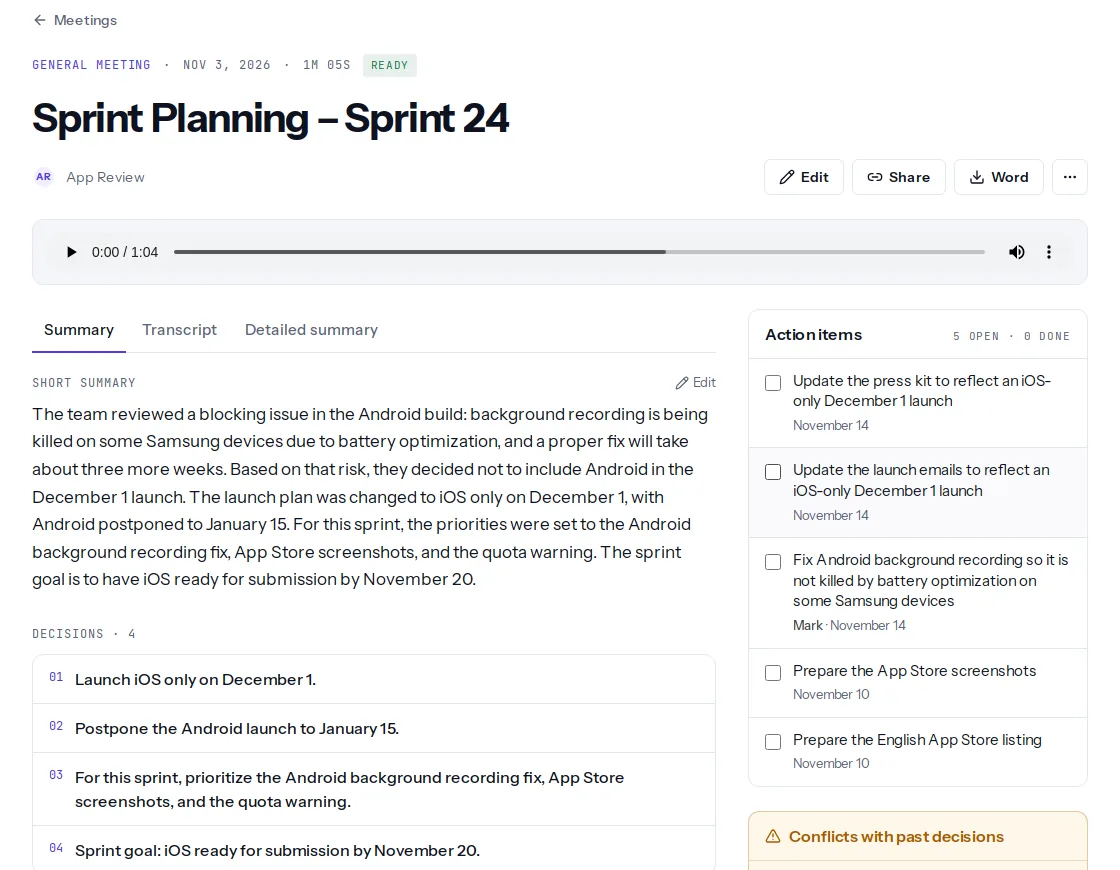
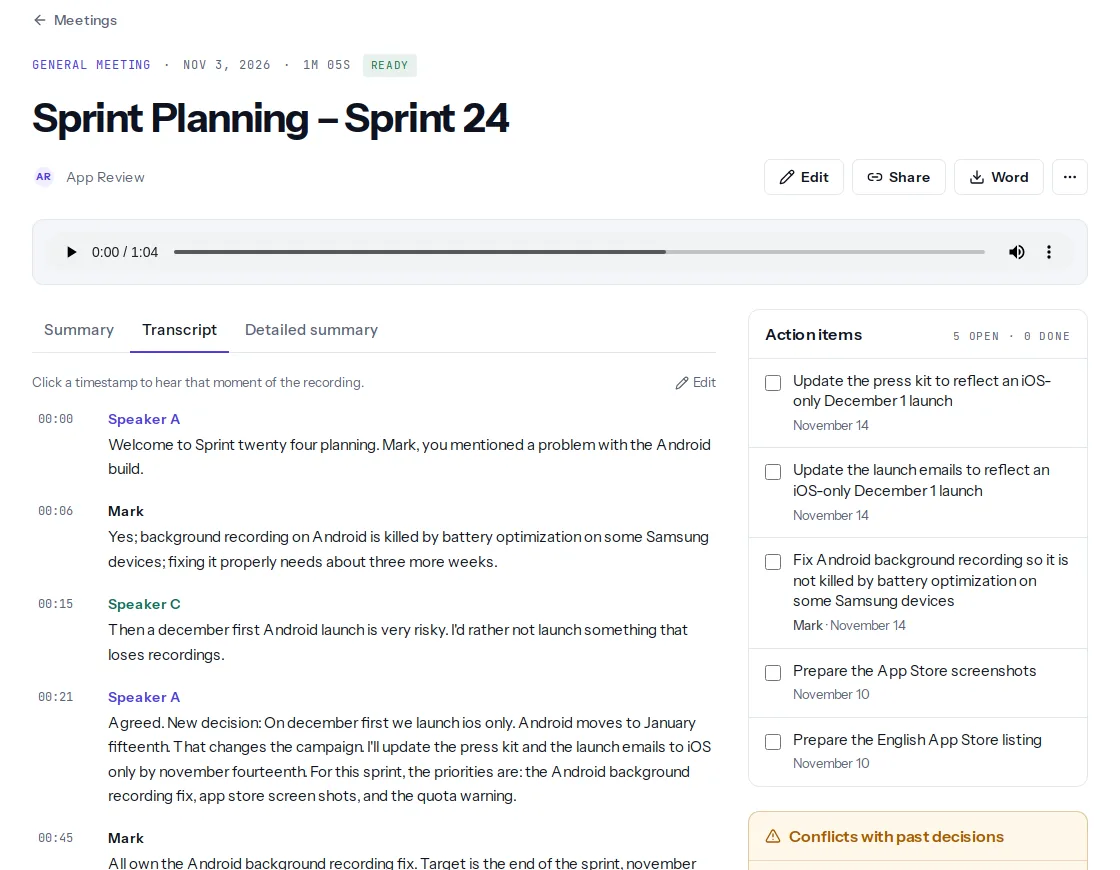
Speakers are separated and matched to participant names, so the transcript reads like a conversation rather than a wall of text.
Summary, decisions, action items
A short summary, the decisions that were made, and action items with an owner and a due date when one was mentioned.
Conflict check
New decisions are compared with decisions from the last six months. If today's call contradicts something agreed earlier, Notal points it out.
Ask Notal
Ask questions across all your meetings, for example “when did we agree on the new pricing?”, and get an answer with links to the source meetings.
Share and export
Send a read-only summary link to people who weren't there, or export the notes to Word.
Step by step
- Open notal.so in Chrome and click “Record new meeting”. Give it a title and choose the meeting type.
- In the share dialog, pick the browser tab where the call is running and tick “Share tab audio”. Your microphone is added automatically.
- If you use the Zoom or Teams desktop app instead, record with the Notal Windows app; it captures the computer's audio, so no tab sharing is needed.
- When the call ends, stop the recording. It uploads and is processed on its own; a 30-minute meeting is usually ready in about seven minutes.
- Review the summary, tick off action items as they get done, and share the link with the team.
Tell people you're recording
Because no bot announces itself, it's on you to let participants know the call is being recorded and to get consent where the law requires it.
What Notal doesn't do
- It doesn't join meetings on its own from your calendar. Someone on the call starts the recording.
- It records audio, not video, and shows the transcript after the meeting rather than live.
- The desktop app is Windows-only for now; on a Mac, use Chrome with tab audio.
Frequently asked questions
Does Notal join my Zoom, Meet or Teams call as a participant?
No. Notal records from your own device: the meeting tab in Chrome, or your computer's audio with the Windows app. Other participants don't see an extra attendee.
Can I record a meeting that runs in the Zoom or Teams desktop app?
Yes, with the Notal Windows app, which records the computer's audio and your microphone together. In the browser, the meeting needs to run in a Chrome tab so its audio can be shared.
Do I need to be the host?
No. Notal doesn't need host permissions because it isn't using the platform's recording feature. You still need to tell participants that you're recording.
What if I forgot to record but have the platform's recording?
Download the recording file and upload it to Notal. MP3, M4A, WAV, WebM, OGG, FLAC and MP4 files are supported.
How long can a meeting be?
Long meetings are fine; recordings are split into parts and processed in parallel. Monthly limits are 5 hours on the free plan and 100 hours on PRO.